As we all know when creating a game we are most likely going to need to support devices using a different resolution and aspect ratio. We can handle this in several ways but for this instance we are going to imagine that the resolution is static and we are going to move each control into position.
Margins
We can do that by either editing the margin properties of the control (left, top, right, bottom) or the position and width/height properties of the control (x, y, width, height). By default, the margin properties represent a distance in pixels relative to the top-left corner of the parent control or the viewport.
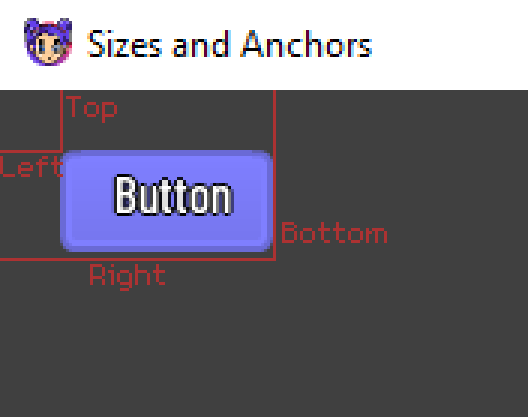
Adjust Margins by position
An example of setting a controls x and y properties and the margin calculation results:
val scene = sceneGraph(context, batch = batch) {
    control {
        fillParent()

        button {
            text = "Button"

            x = 20f
            y = 20f
        }
    }
}
Outputs the calculated margins as so:
marginLeft: 20.0
marginTop: 20.0
marginRight: 91.0
marginBottom: 54.0
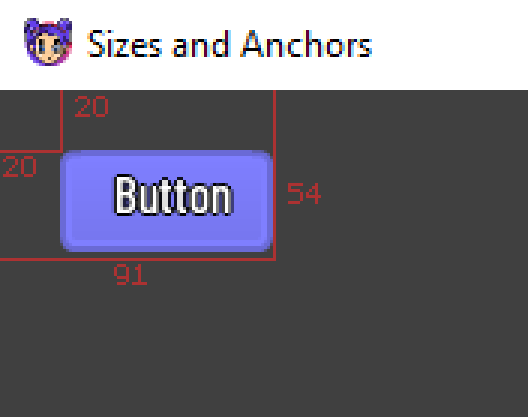
Adjust Anchor Point
If we change the button controls right and left anchors to 1f we will see the will see the margin values become relative to the top right corner of the parent control or viewport.
val scene = sceneGraph(context, batch = batch) {
    control {
        fillParent()

        button {
            anchorRight = 1f
            anchorLeft = 1f

            text = "Button"

            x = 20f
            y = 20f
        }
    }
}
marginLeft: -940.0
marginTop: 20.0
marginRight: -869.0
marginBottom: 54.0
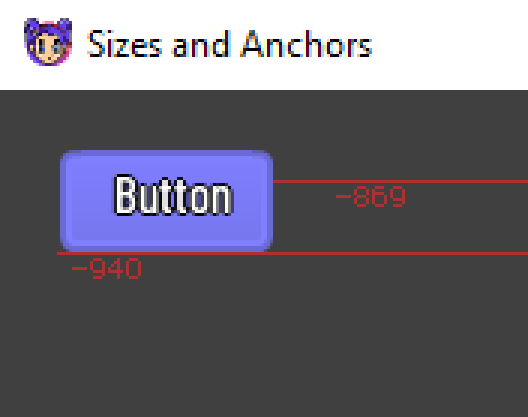
Anchor Presets
Instead of manually adjusting margin and anchor values, we can use the anchor() method of a control node to automatically align and resize the node to the specified layout.
Do note that if end up adjusting the position or sizes of the control manually, after settings the anchor preset, it will no longer automatically update to that preset. We would have to set the preset again in order for it to calculate it automatically.
Centering a Node
Example of aligning a button to the center of its parent:
val scene = sceneGraph(context, batch = batch) {
    control {
        fillParent()

        button("Button") {
            centerInParent()
        }
    }
}
centerInParent() is the same as anchor(AnchorLayout.CENTER).
Filling the Parent
Stretch a control over its whole parent, optionally keeping a margin from each edge:
control {
    fillParent(margin = 10f)
}
Any preset can take a margin as well:
button("Button") {
    anchor(AnchorLayout.TOP_WIDE, margin = 10f)
}
Setting All Anchors
Set all four anchors at once with anchors():
button("Button") {
    anchors(left = 1f, top = 0f, right = 1f, bottom = 0f)
}
Sizing in Containers
When a control is inside a container, its size flags decide how much space it takes.
Expand
Take up the free space of the parent container. The ratio sets the share between expanding siblings:
row {
    button("Small") { expandWidth() }
    button("Big") { expandWidth(ratio = 2f) }
}
Use expand() for both axes or expandHeight() for only the vertical axis.
Shrink
Keep the control at its minimum size and place it at the start, center, or end of its space:
column {
    button("Begin") { shrinkBegin(vertical = false) }
    button("Center") { shrinkCenter(vertical = false) }
    button("End") { shrinkEnd(vertical = false) }
}
Minimum Size
Set the minimum width and height of a control with minSize():
button("Button") {
    minSize(120f, 40f)
}